How I Remove SynthID from Images for Free Using Stable Diffusion Forge
On October 7, 2026, Google opened its SynthID Detector to the general public. The technology itself had been around since 2023, but now anyone could use a dedicated website to check images, videos and audio files for invisible SynthID watermarks.
And, predictably, the internet did what it does best: it found a way to turn this into a subscription business.
Services offering to remove SynthID watermarks started appearing, complete with monthly plans, annual subscriptions and impressive promises. Some make it sound as though they have developed a secret technology capable of defeating Google's sophisticated watermarking system.
The funny thing is that at least some of these services may simply be doing what you can already do yourself: slightly modifying or reconstructing an image.
Of course, we cannot know exactly how every commercial service works. But the underlying idea is not particularly mysterious. If an image is reconstructed with small changes to its pixels, the watermark detector may no longer recognize the original embedded signal.
In this article, I'll show you the completely free, unlimited and local method I personally use to process images and test whether they still trigger Google's SynthID Detector.
No subscription, no mysterious online service and no need to upload your pictures to a third-party website for processing.
My Hardware and Software
First, a few words about the computer I'm using. Nothing particularly exotic here, although it is reasonably well equipped for AI image generation.
My setup is a laptop with 64 GB of DDR4 RAM, an NVIDIA GeForce RTX 3070 with 8 GB of VRAM, running Microsoft Windows 10 Home.
On this machine, processing a single image usually takes around 10 seconds, depending on its resolution and other settings.
Of course, the method should also work on other hardware configurations. A more powerful graphics card will generally produce results faster, while a slower one will require a little patience. You may also need to adjust memory settings if your GPU has less VRAM.
For image processing, I use Stable Diffusion WebUI Forge, a free and open-source interface for running Stable Diffusion models locally.
You can download it from the official GitHub repository:
Stable Diffusion WebUI Forge on GitHub
The model I use is RealVisXL V5.0, specifically the following file:
RealVisXL_V5.0_fp16.safetensors
The model is approximately 6.46 GiB in size, so make sure you have enough free disk space before downloading it.
You can get the model here:
Download RealVisXL V5.0 FP16 from Hugging Face
After downloading, place the model file in the models/Stable-diffusion/ directory of your Forge installation. Start Forge and select RealVisXL V5.0 from the checkpoint selection menu.
Once everything is ready, we can get to the interesting part.
Configuring Img2img
All the work takes place in the Img2img tab of Stable Diffusion Forge.
Unlike normal text-to-image generation, where an AI model creates a picture from scratch, Img2img starts with an existing image and reconstructs it according to your instructions.
Our task is simple: preserve the original image as closely as possible while allowing the model to introduce extremely subtle changes.
We do not want a new composition, different lighting or unexpected artistic improvements. We certainly do not want the AI to decide that our carefully composed photograph would look better with an extra hand, a different face or a mysterious object floating in the background.
We want the original image, or something visually very close to it.
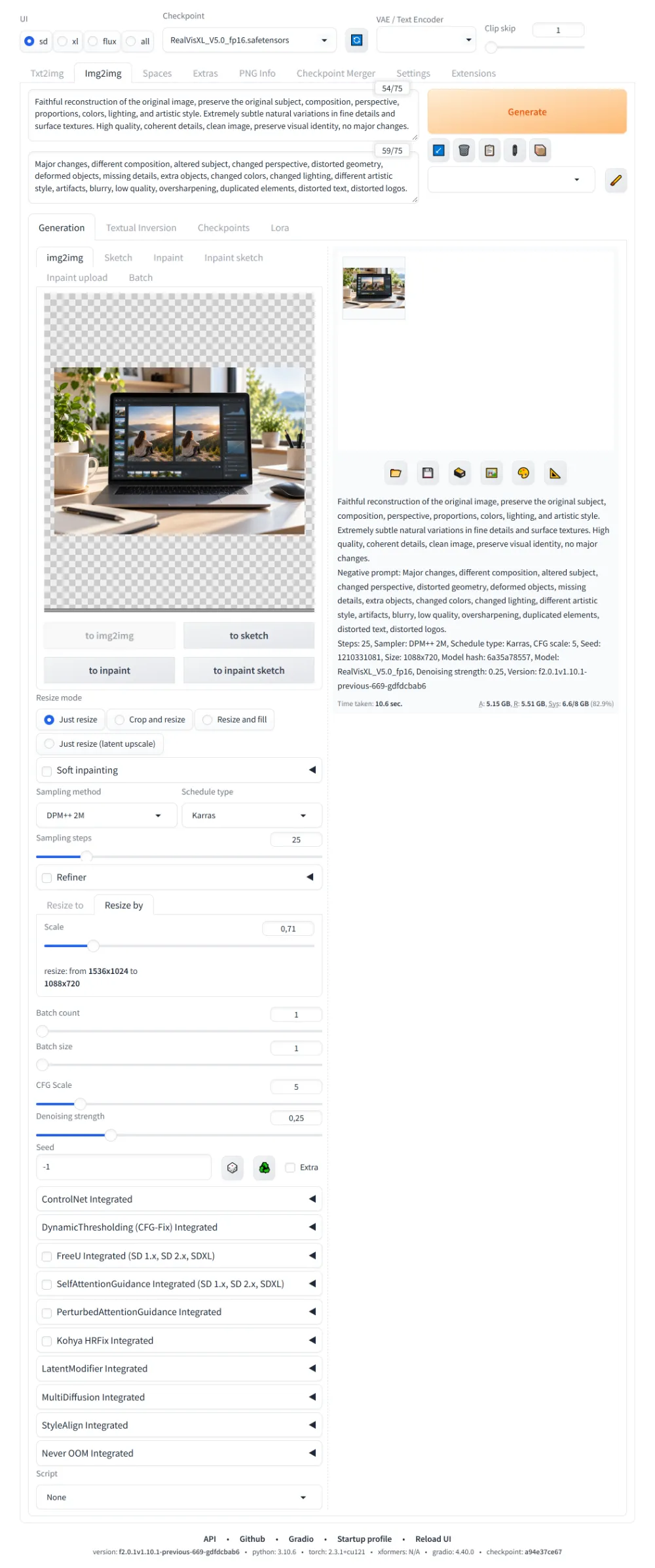
Here is the positive prompt I use:
And here is my negative prompt:
These prompts tell the model to keep the original subject, composition, proportions, colours and lighting, while avoiding unnecessary creative interpretation.
They are not magical commands. The most important setting is actually something else, which we'll get to in a moment.
My Exact Generation Settings
Here are the settings I currently use in Stable Diffusion Forge:
- Checkpoint: RealVisXL_V5.0_fp16.safetensors
- Sampling method: DPM++ 2M
- Schedule type: Karras
- Sampling steps: 25
- Resize by: 1
- Batch count: 1
- Batch size: 1
- CFG Scale: 5
- Denoising strength: 0.25
- Seed: -1
The Resize by value of 1 keeps the original dimensions unchanged. You can use a smaller value if you want to reduce the output resolution. Scaling this way preserves the image's aspect ratio.
Batch count and batch size are both set to 1 because I normally process one image at a time. There is no reason to complicate things unnecessarily.
The CFG Scale of 5 provides a reasonable balance between following the prompts and preserving the original image.
But the setting that deserves special attention is Denoising strength.
The Most Important Setting
I normally use a Denoising strength of 0.25.
This setting determines how strongly the AI reconstructs the source image. Lower values keep the result closer to the original, while higher values allow more noticeable changes.
In my experiments, 0.25 has been a useful compromise. The image generally remains almost identical to the original when viewed normally, while the processing can be sufficient to make the SynthID Detector stop recognizing the watermark.
A value of 0.20 also works in many cases, although I've found it less reliable. Sometimes the detector still recognizes the processed image.
If you increase denoising too much, you may introduce visible differences in fine details, surfaces, textures, facial features or even small objects.
And that's not really what we're trying to achieve.
Think of denoising strength as a slider between "please leave my picture alone" and "I have a few creative suggestions."
For this particular task, I prefer the model to keep its creative suggestions to itself.
One more important detail: Seed -1 tells Forge to use a random seed for each generation. This means that repeated runs can produce slightly different results, even with identical settings.
Generating and Checking the Result
Once the prompts and settings are ready, everything becomes very straightforward.
Upload your original image to the Img2img tab and click Generate.
On my RTX 3070, the processing usually takes around 10 seconds for the resolutions I normally work with.
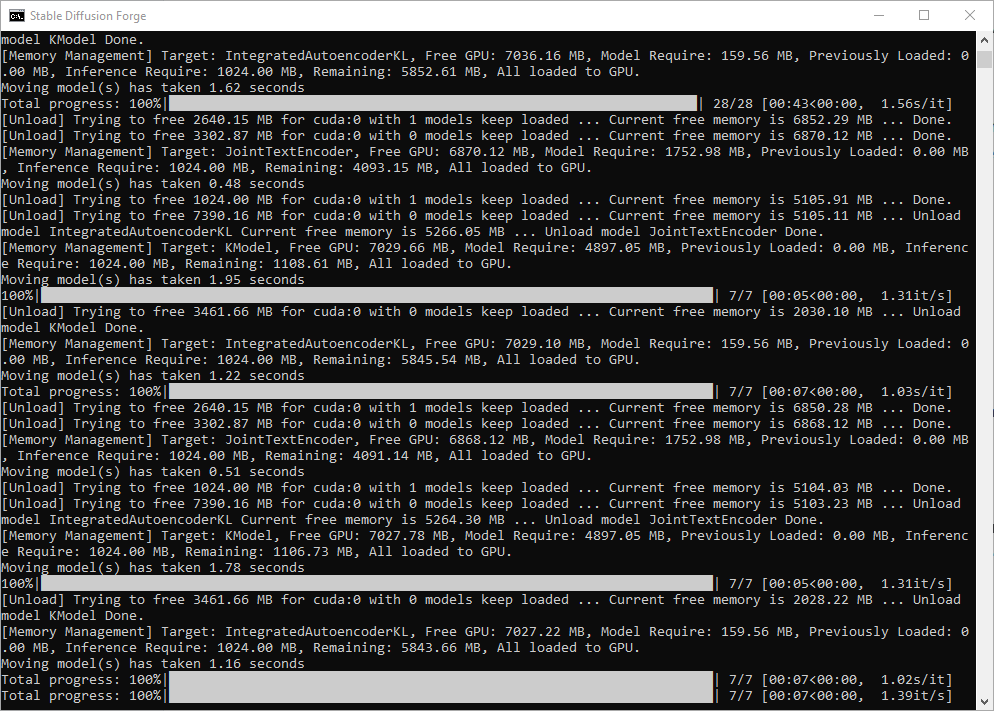
The resulting image should look extremely similar to the original. In many cases, it is difficult to notice any differences without comparing the two files very closely.
However, small details can change. Text, logos, thin lines, facial features and complicated textures deserve particular attention. If they are important, examine the output at full resolution rather than relying on a small preview.
Text requires extra care. If the original image contains signs, labels, captions or other writing, the letters may become noticeably more distorted than ordinary objects and areas without text. Words can change, disappear or turn into unreadable characters even when the rest of the picture looks almost identical. Always check any text in the generated image carefully.
Now comes the interesting part.
Open the official SynthID Detector and check the processed image.
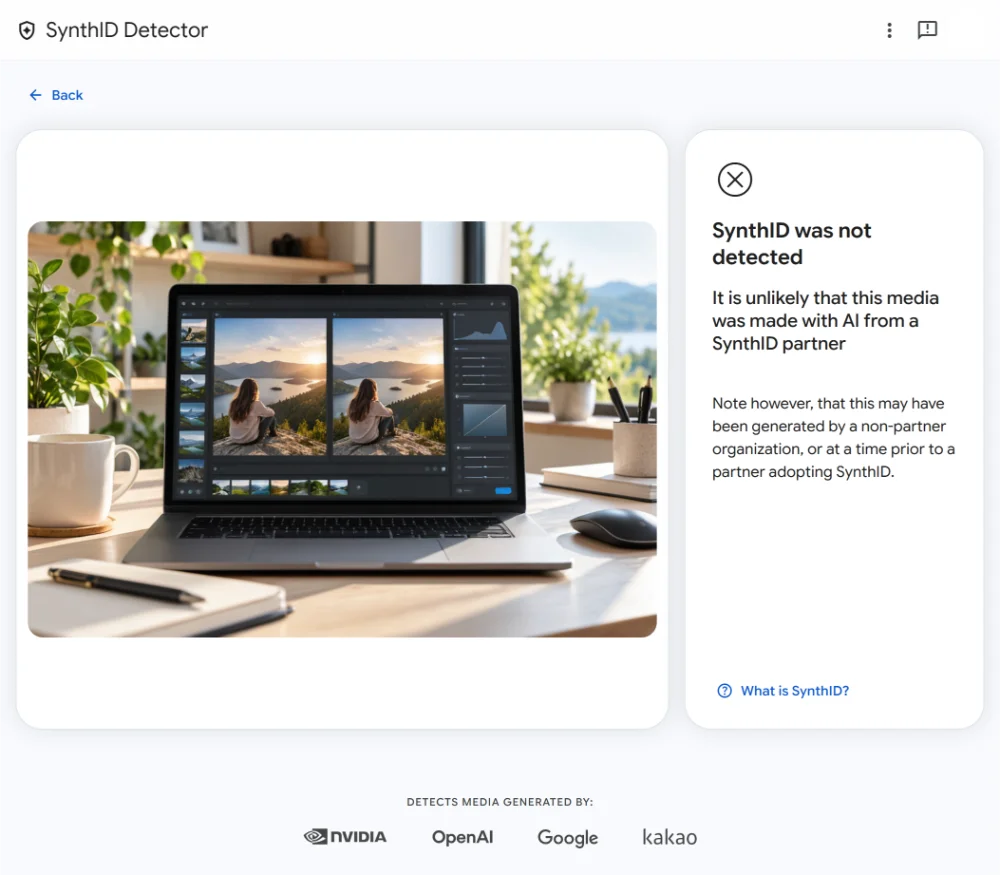
In my tests, images that were recognized before processing often stop triggering the detector after Img2img reconstruction with these settings.
That is the result we're looking for: the processed image passes the official detector check without a SynthID watermark being detected.
But there is an important technical distinction here.
A negative result from SynthID Detector does not guarantee that the SynthID watermark has been completely removed. It only means that the detector did not identify a watermark in that particular file during that particular check.
Some watermark information may remain, even if it is no longer detectable by the publicly available tool. Detection methods may also improve over time.
Similarly, an image that passes the test does not suddenly become an authentic camera photograph. It remains AI-generated or AI-modified content, regardless of what a watermark detector reports.
For that reason, I describe this technique as a way to reconstruct an image so that it no longer triggers the current official SynthID Detector, rather than claiming that every trace of the watermark has been permanently destroyed.
This is a more accurate description of what we can actually verify.
Why Pay for Something You Can Do Yourself?
The most amusing part of this little experiment is how ordinary the underlying process is.
There are websites asking for money to perform operations that may be based on the same general idea: making controlled changes to an image.
Of course, commercial services may offer additional processing, automation, convenience or completely different techniques. Without examining a particular service, we cannot know exactly what happens behind the scenes.
Still, paying a recurring subscription merely to process a few pictures seems unnecessary when free local tools can achieve a similar practical result.
With Stable Diffusion Forge, there are no per-image fees, no monthly quotas and no subscription plans. The software runs on your own computer, and your source images do not need to leave it.
There are some costs, naturally. Your hardware consumes electricity, the model takes up disk space, and setting everything up requires a little effort. But once Forge is installed, you can process as many images as your computer and patience allow.
For me, that's a much better deal.
And because I can control the prompts, model and denoising strength myself, I know what processing I'm applying instead of sending an image to an unknown service and hoping for the best.
That's All There Is to It
No secret algorithm, no expensive subscription and no complicated workflow.
Install Stable Diffusion Forge, download the RealVisXL V5.0 model, open Img2img, enter the prompts, apply the settings and generate a reconstructed image.
Then check the result using Google's official SynthID Detector.
With my current configuration, this approach often produces an image that looks practically identical to the original but is no longer recognized by the public detector.
It is not a guarantee of complete watermark removal, and the results may vary between images and future detector versions. But as a free, local and repeatable image-processing experiment, it works well enough for my purposes.
And that's pretty much it.
No subscriptions. No artificial limits. No magic.
Just Stable Diffusion Forge, a little GPU time and perhaps one less reason to give your credit card details to a website promising miracles.
Comments (0)